Learn how to edit and update existing lender quotes on your deals in the Lev platform.
Getting Started
Select a Lender with Existing Terms
Navigate to your deal and click on the Outreach tab to view all lenders. Click on any lender row to open the lender details panel.
Location: Deals > [Your Deal] > Outreach
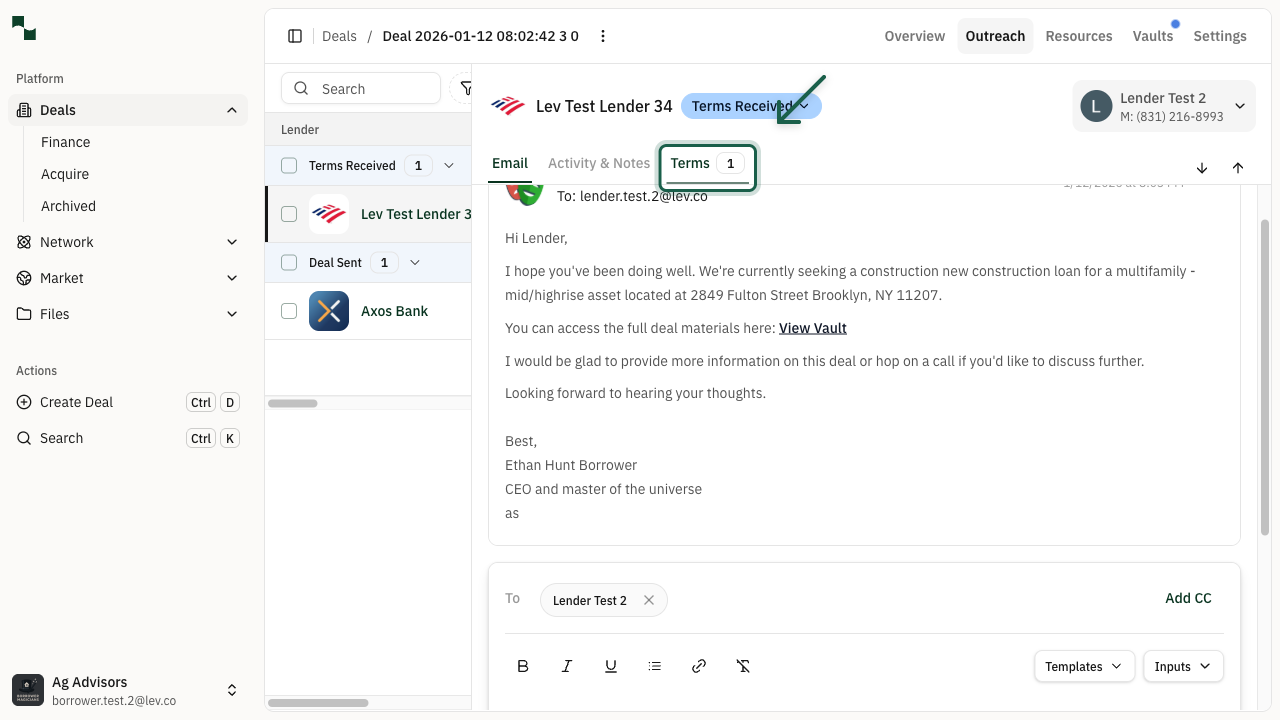
Look for lenders with a Terms Received status badge, indicating they have submitted quotes that can be edited.
Open the Terms Tab
In the lender side panel, click on the Terms tab. The badge next to "Terms" shows how many quotes exist for this lender.
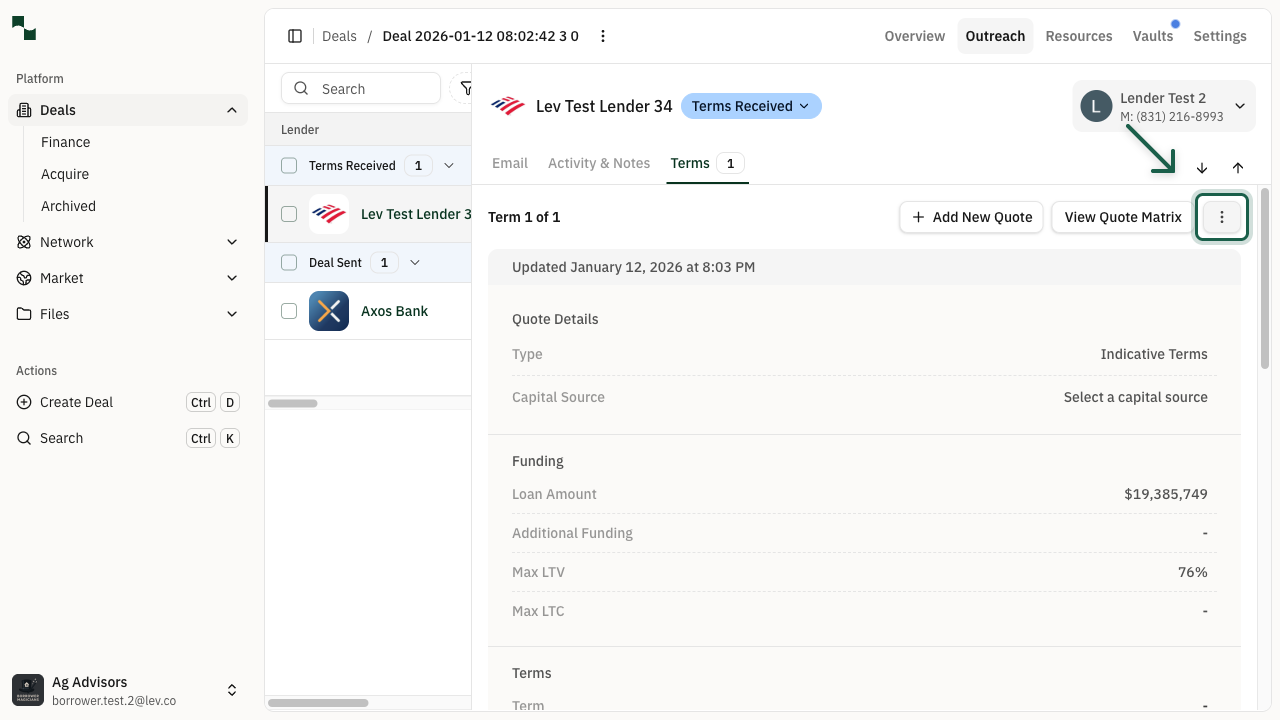
This tab displays all quote information including loan amount, LTV, rate, and other terms submitted by the lender.
Editing the Quote
Open the Edit Menu
Click the three-dot menu (Edit options) button in the top right of the Terms panel. A dropdown menu will appear with options to edit or delete the quote.
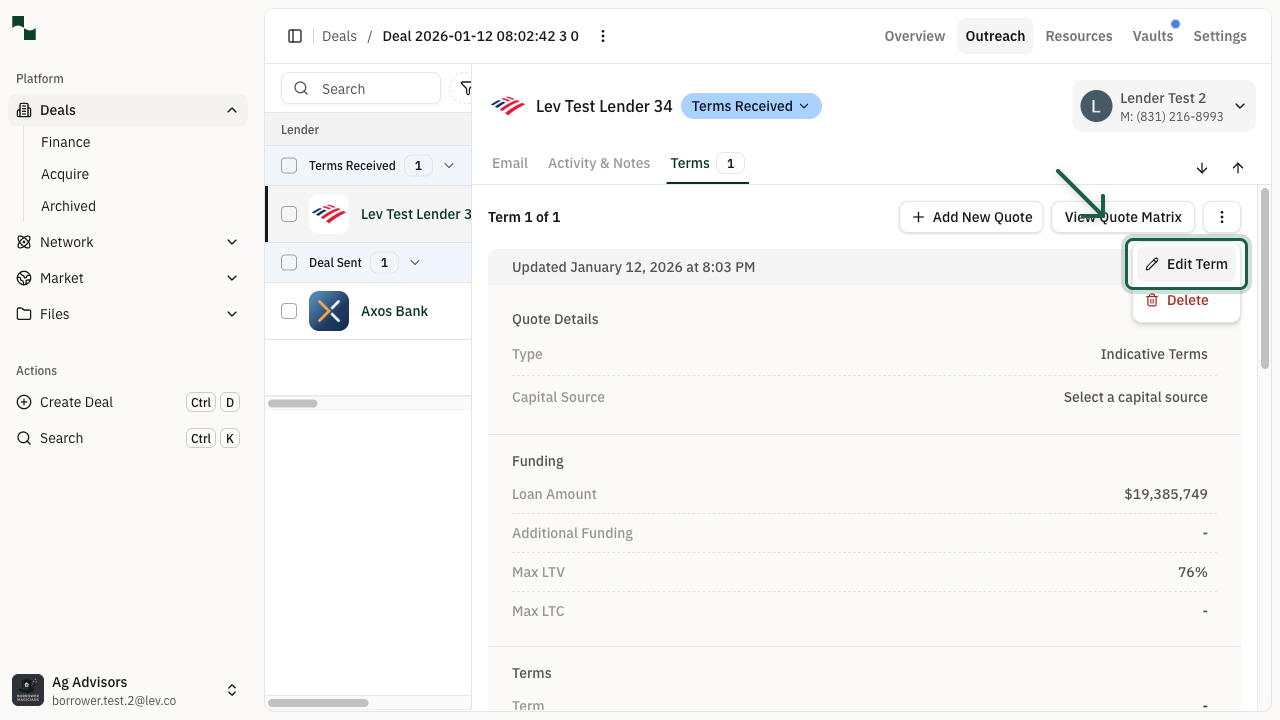
Select Edit Term from the dropdown menu to open the quote editing dialog.
Update Quote Details
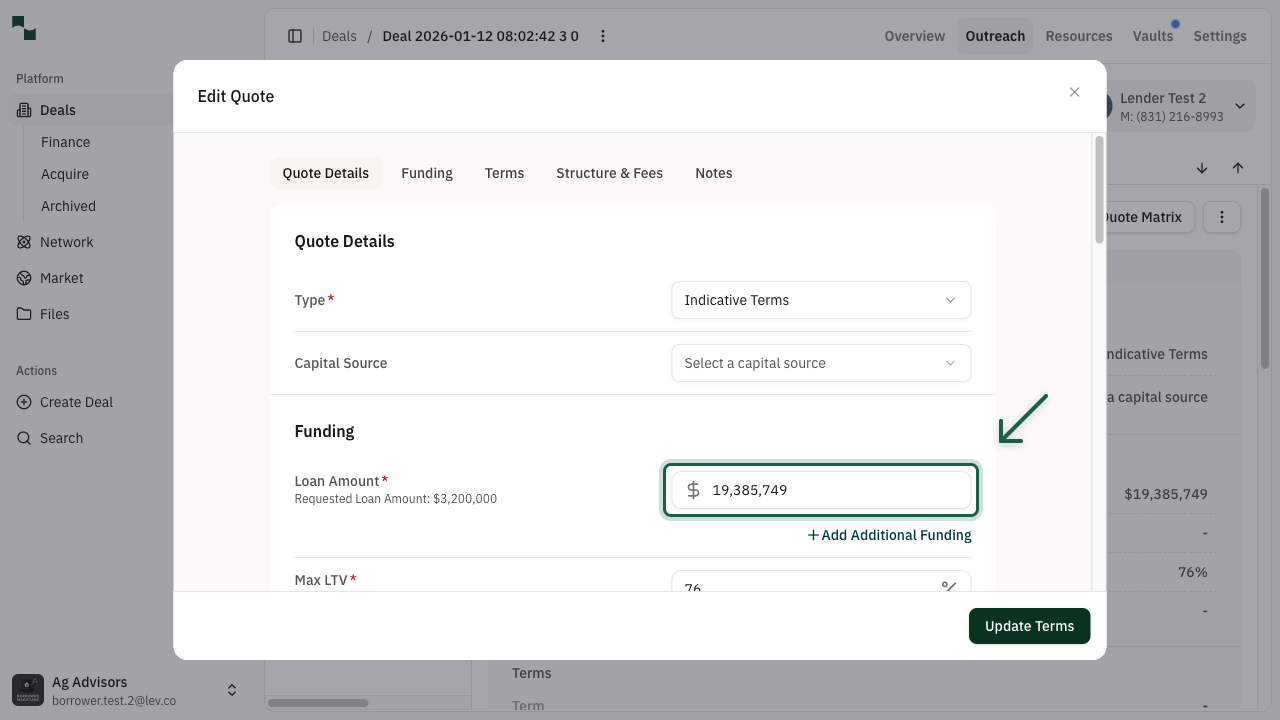
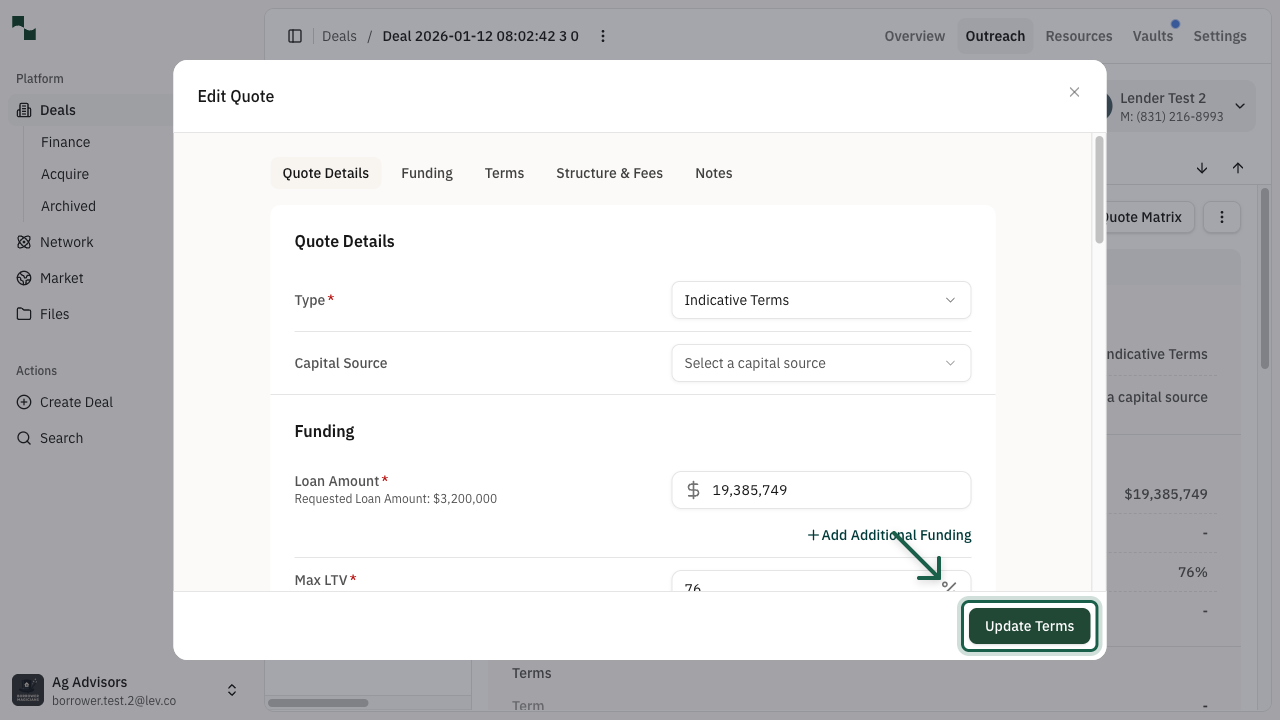
The Edit Quote dialog opens with tabs for different quote sections. You can update any of the following:
Navigate between tabs to update the relevant fields. Required fields are marked with an asterisk (*).
- Quote Details: Quote type and capital source
- Funding: Loan amount, additional funding, Max LTV, Max LTC
- Terms: Term length, amortization, interest only period, rate, prepayment penalty
- Structure & Fees: Recourse, DSCR, debt yield, origination and other fees
- Notes: Any additional notes or attachments
Save Your Changes
After making your changes, click the Update Terms button at the bottom of the dialog to save your updates.
The dialog will close and your updated quote information will be reflected in the Terms panel immediately.
You're All Set!
- Your quote has been updated with the new information
- The updated terms are now visible in the lender's Terms panel
- The quote's "Updated" timestamp reflects your latest changes
- You can continue to edit quotes as negotiations progress