Introduction
Lev Memo allows you to easily modify your content structure by allowing you to easily add / delete slides, move the slides around, or even copy a templated slide from another Memo.
Adding a Slide
Add a Blank Slide
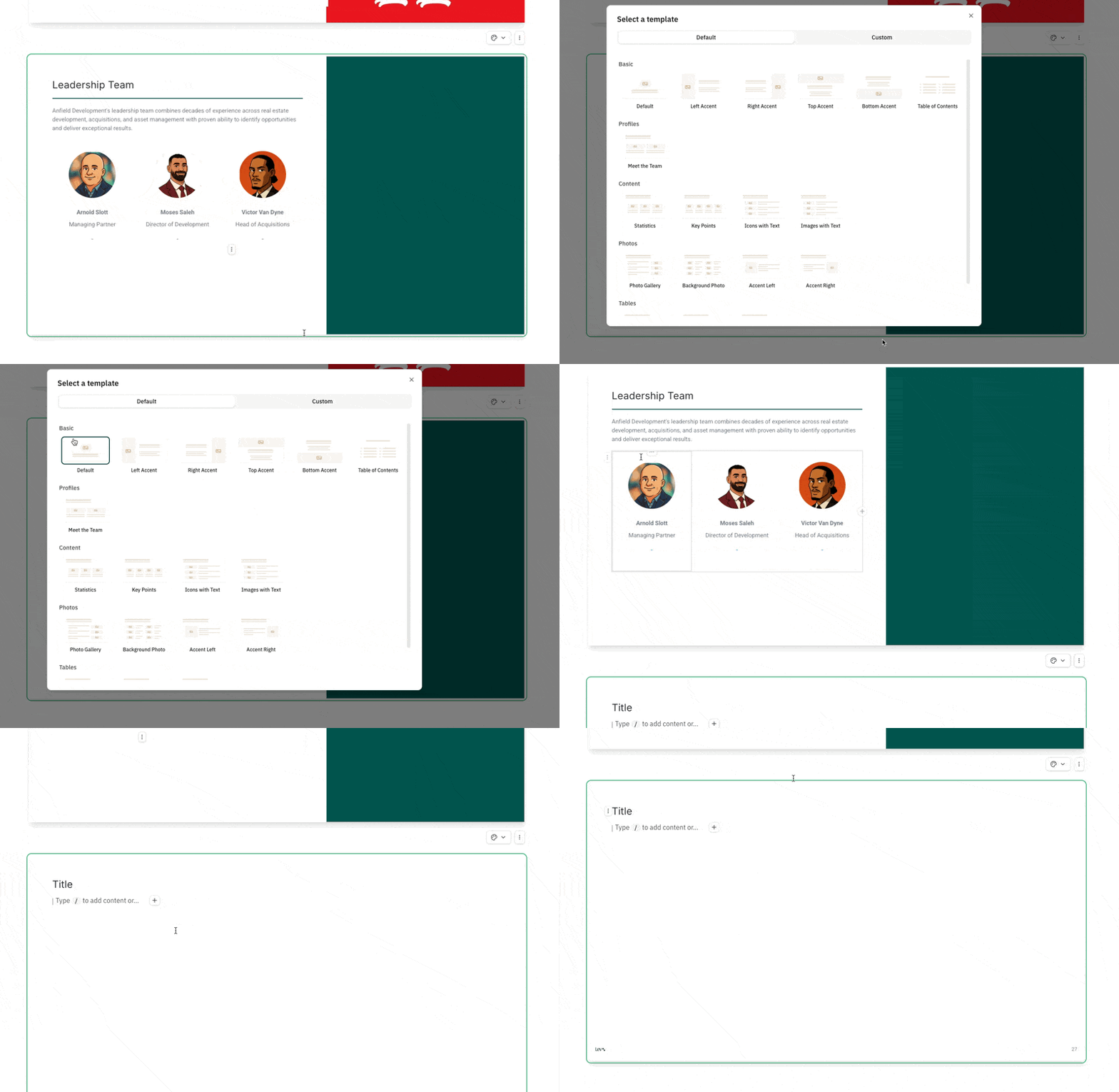
- Click on the "+" button at the bottom of any slide in a Memo to bring up the template modal
- Select any of the default layout templates to add a blank slide
Duplicate a Slide within the Same Memo
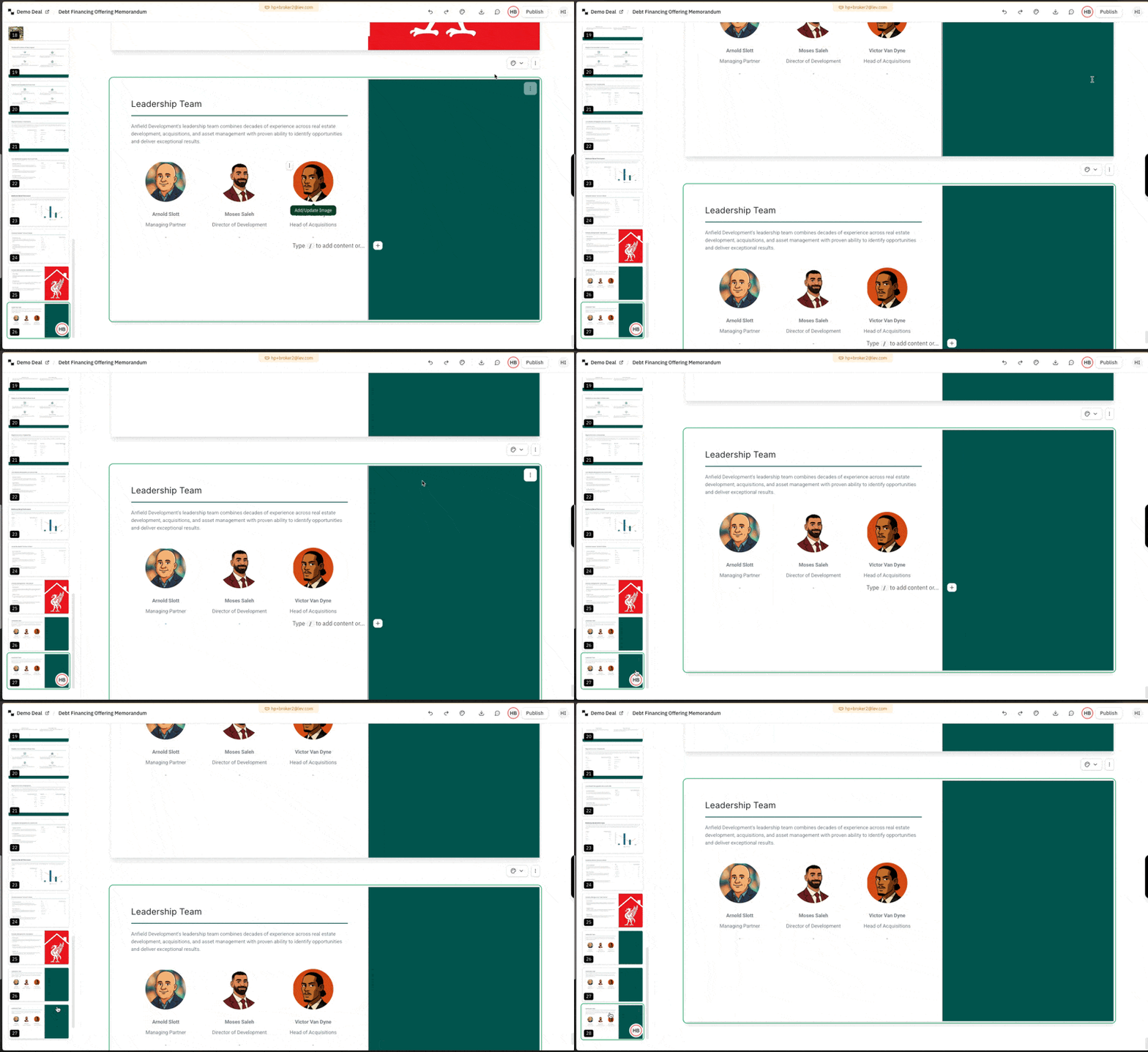
Via the Dots Menu
- Click on the vertical dots menu above the top right of any slide
- Click on duplicate slide to insert a copy of the slide directly underneath the selected slide
Via the Slide Preview Bar
- Click on the three dots on any slide in the left-hand-side preview bar
- Click on duplicate slide to duplicate the slide
Add a Slide from Another Memo
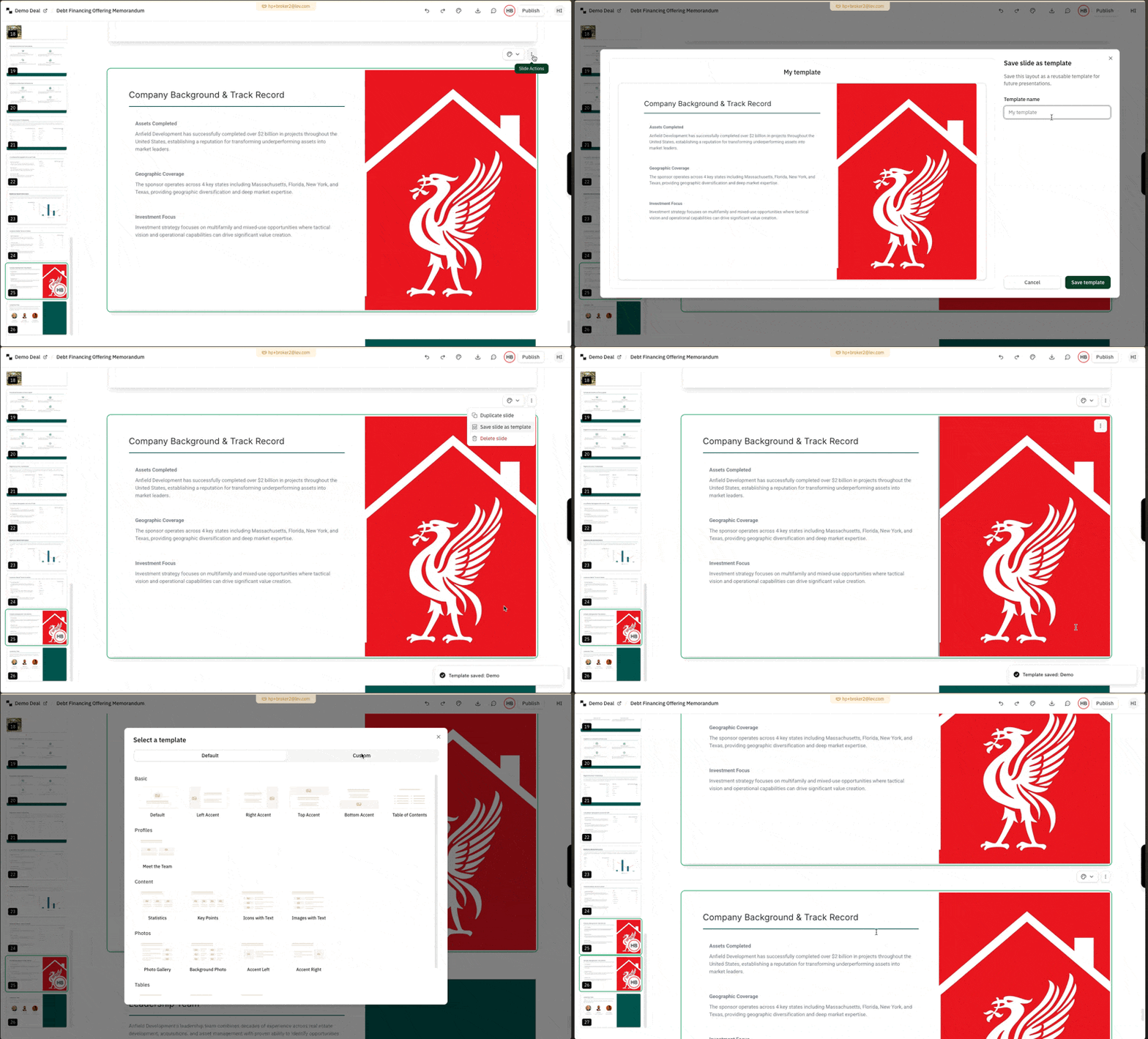
- Click on the vertical dots menu above the top right of any slide
- Click on "Save slide as template" and give the slide a name you can recall
- Navigate to another Memo (or the same one) and add a new slide by clicking on the "+" button underneath any slide
- Click on the "custom" tab in top right of the template modal and add the slide you saved
Deleting a Slide
Warning
Deleting a slide is permanent! There is no way to undo this today.
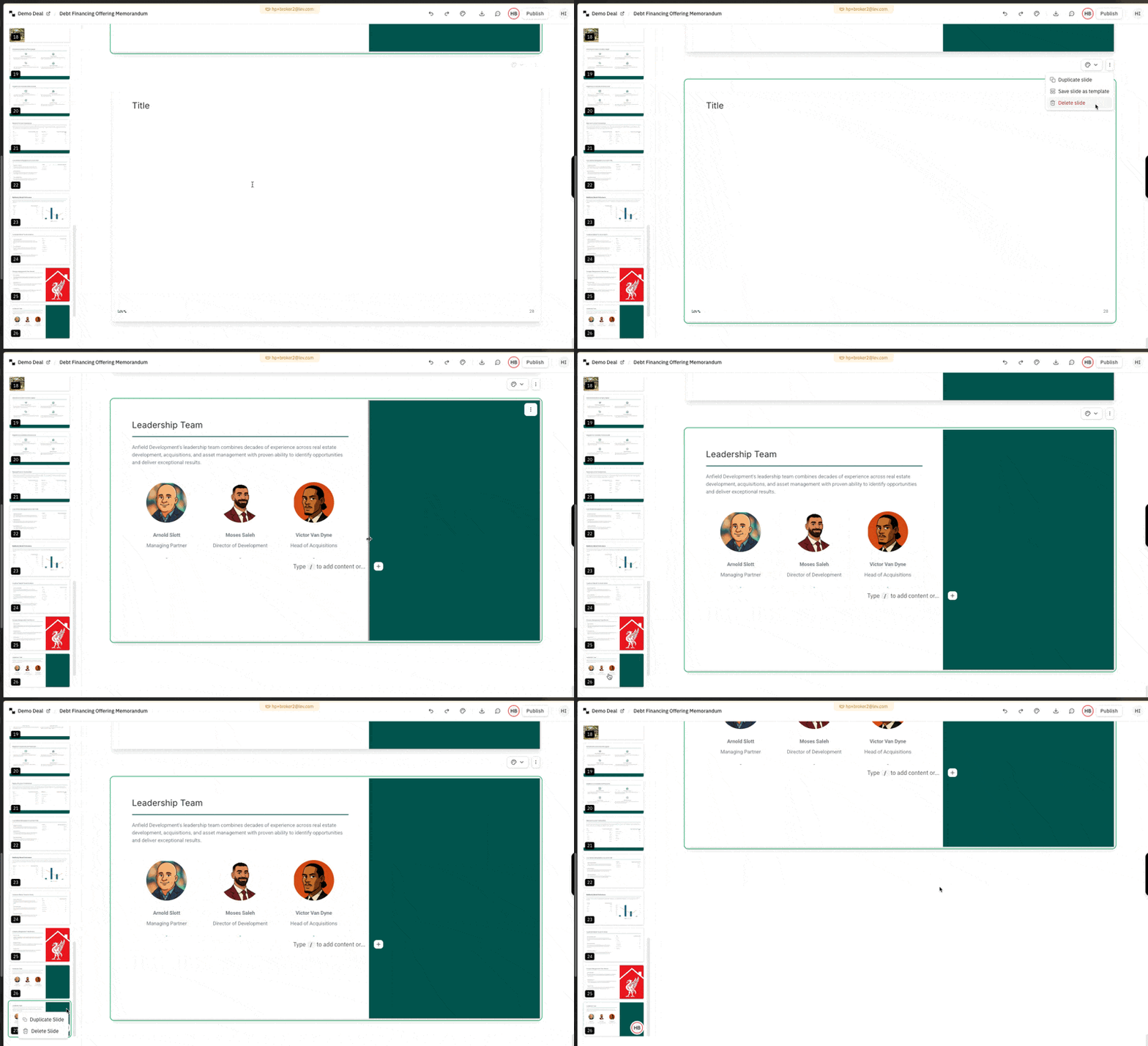
- Click on the vertical dots menu above the top right of any slide
- Click on the delete slide / trash icon to delete the slide
- Click on the three dots on any slide in the left-hand-side preview bar
- Click on delete slide to delete the slide