Introduction
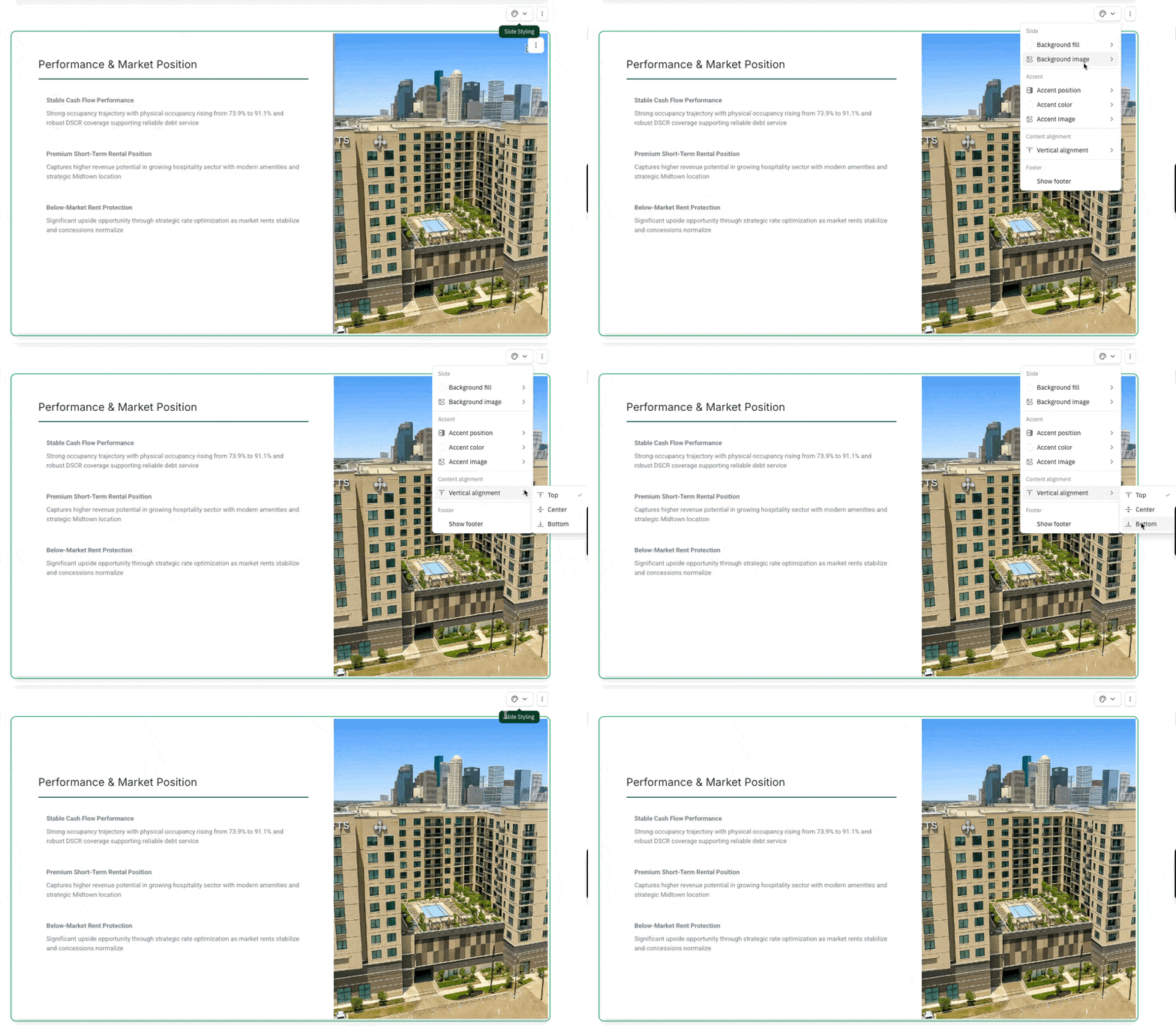
By styling your slide, you can create a Memo that's visually stunning and engaging. We make it easy for you to adjust the background, accent position, as well as alignment of the content.
Changing the Background
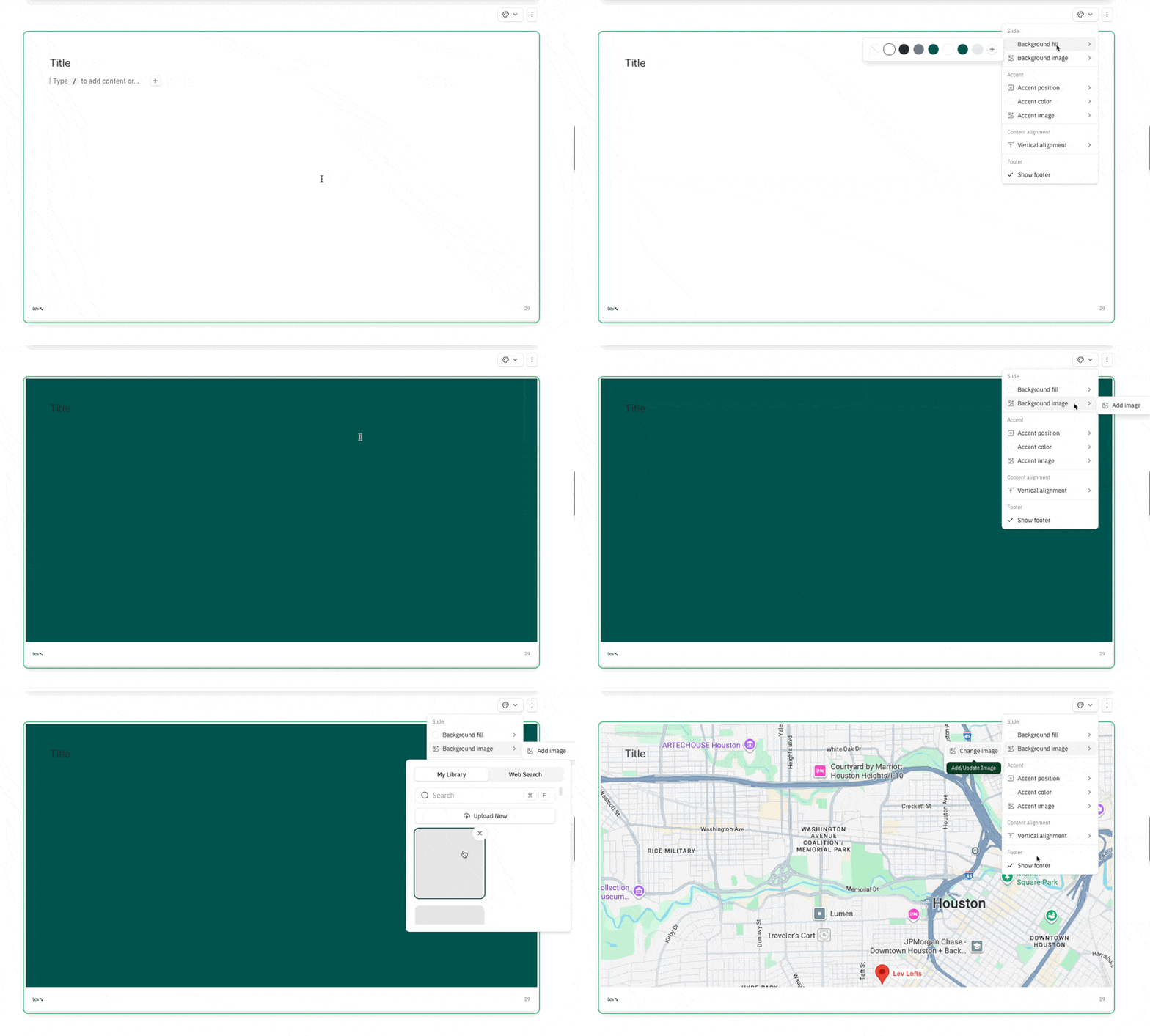
Adding a Background
- Navigate to Slide Styling menu above the top right corner of any slide
- For a solid background color, click on Background fill and choose a color
- For background image, click on Background image to bring up the library
- The image will overwrite any existing background color
- Choose an image from your deal's image library or search from the web
Removing a Background
- Navigate to the Slide Styling menu above the top right corner of any slide
- To remove the background color, click on background fill and choose the first color option with the slash
- To remove the background image, click on background image and choose remove image
Adding / Editing an Accent
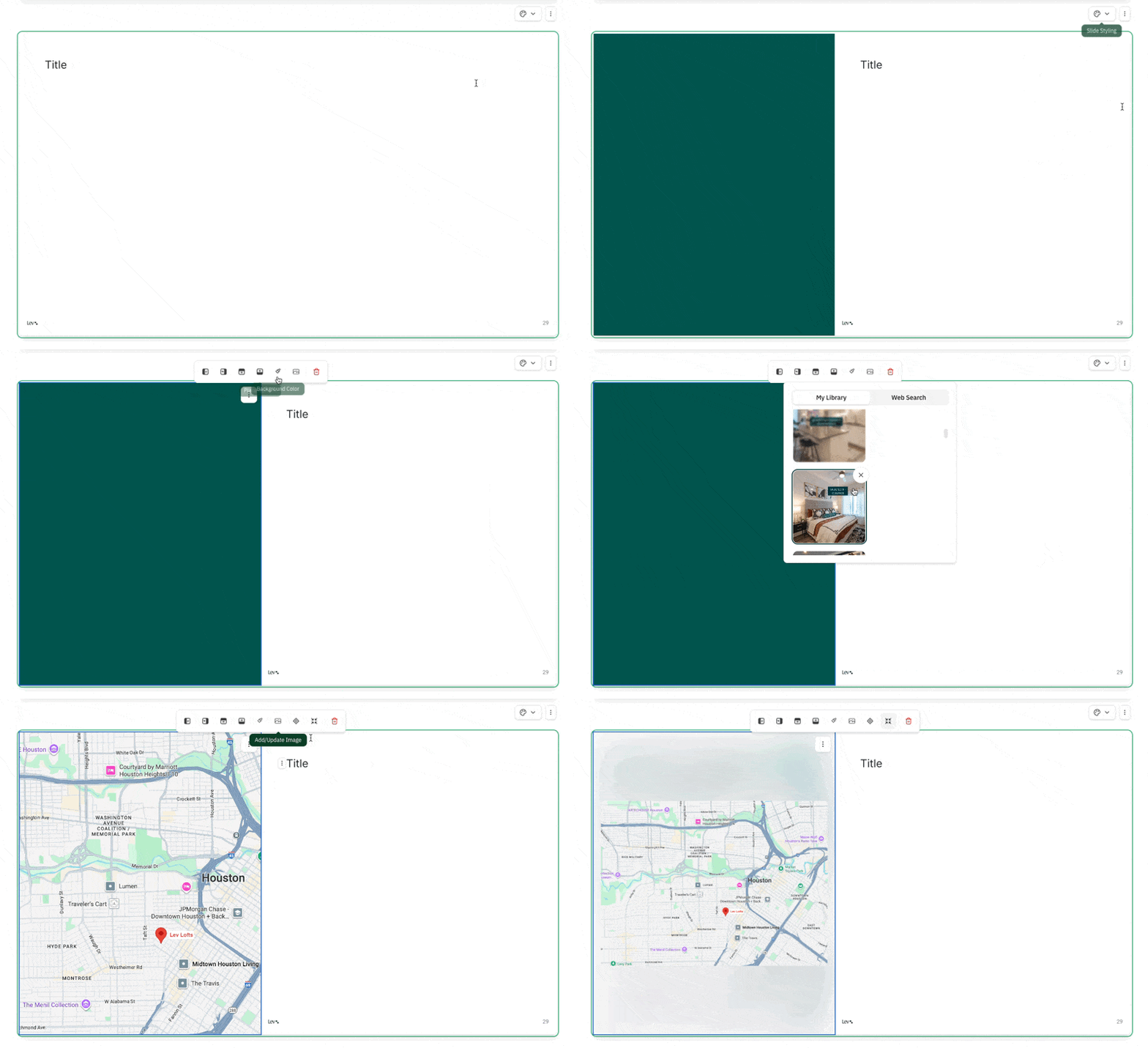
Adding an Accent
- Navigate to the Slide Styling menu above the top right corner of any slide
- Click on Accent position and choose an accent position to add an accent
- For a solid color accent, click on Accent color and choose a color
- For a accent image, click on Accent image to bring up the image library
- The image will overwrite any existing background color
- Choose an image from your deal's image library or search from the web
Editing an Accent
- Click on the add/update image icon to swap out the accent image
- Click on the trash icon to remove the image or delete the accent entirely
- Adjust the size of the accent image by dragging the border of the accent
- Use the crosshairs icon to adjust the focal point of the image to be shown in the accent
- Choose Fit Image to ensure the entire image fits neatly within the accent
Aligning Your Content
Set how your text and visual content sit vertically within a card
- Navigate to the Slide Styling menu above the top right corner of any slide
- Click on vertical alignment and choose
- Top - align contents to the top
- Center - align contents to the center
- Bottom - align contents to the bottom